Day 3
Cloud Institution
Overview
This video delves into advanced Git commands, focusing on managing local changes and understanding repository history. It explains `git pull` and `git fetch` for updating local repositories, introduces `git log` for tracking commit history, and elaborates on the concept of hashing in Git. The session also covers `git status` for monitoring file states, the importance of `.gitignore` for sensitive information, and the staging process with `git add`. A significant portion is dedicated to `git stash` for temporarily saving uncommitted work, allowing developers to switch contexts, and how to retrieve or discard these stashed changes. Finally, it touches upon tracking issues and pull requests (PRs) within a development workflow.
Save this permanently with flashcards, quizzes, and AI chat
Chapters
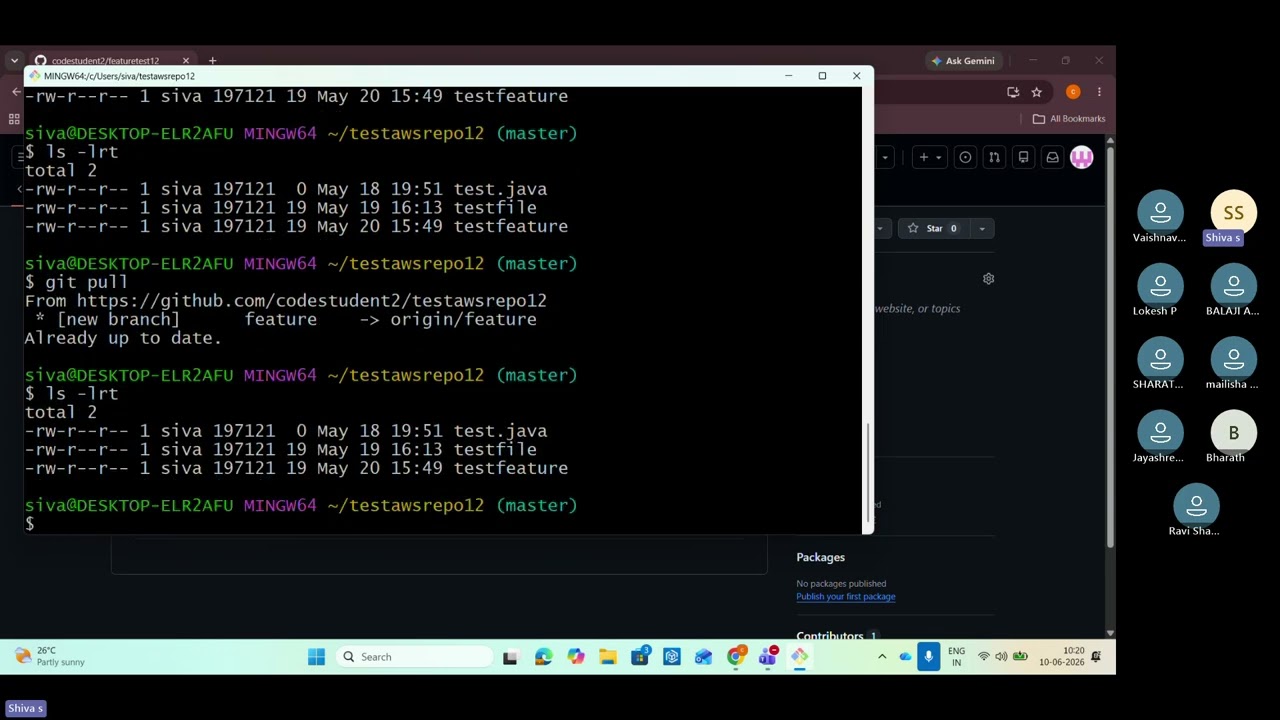
- Git pull downloads changes from a remote repository and automatically merges them into your current branch.
- Git fetch downloads changes from a remote repository but does not merge them; it updates your remote-tracking branches.
- Understanding the difference is crucial for controlling how your local code integrates with remote updates.
- Git log displays a chronological record of all commits made to the repository, including commit IDs, authors, and dates.
- Git uses hashing algorithms to uniquely identify each commit and track changes efficiently.
- Each commit represents a snapshot of the repository at a specific point in time, linked by these hashes.
- Git status shows the current state of your working directory, highlighting untracked, modified, or staged files.
- Untracked files are new files Git is aware of but not yet managing; they require `git add` to be tracked.
- The `.gitignore` file is used to specify intentionally untracked files that Git should ignore, such as sensitive credentials or build artifacts.
- Git stash temporarily saves uncommitted changes (both staged and unstaged) without committing them.
- This allows you to switch branches or work on urgent tasks without losing your current progress.
- Stashed changes can be reapplied later using `git stash apply` or removed using `git stash pop`.
- Issues in Git platforms (like GitHub) are used to track bugs, feature requests, or tasks.
- A Pull Request (PR) is a mechanism to propose changes from a feature branch to a main branch, often linked to an issue.
- Reviewing issues and PRs is vital for release planning to ensure all critical fixes are implemented and closed.
Key takeaways
- Use `git fetch` to review remote changes before merging, offering more control than `git pull`.
- Git's commit history, managed via hashing, provides a robust audit trail of all code modifications.
- Always use `.gitignore` to prevent sensitive information like API keys or passwords from being committed.
- `git stash` is essential for temporarily saving unfinished work, allowing seamless context switching between tasks or branches.
- Understanding `git status` is key to knowing the state of your local files and what needs to be committed.
- Issues and Pull Requests are fundamental to collaborative development, facilitating bug tracking and code integration.
- Practicing Git commands via the command line, rather than solely relying on GUIs, builds deeper understanding and proficiency.
Key terms
Test your understanding
- What is the primary difference in behavior between `git pull` and `git fetch`?
- How does Git use hashing to manage changes and maintain repository history?
- Why is it important to use `.gitignore` and what types of files should typically be included?
- Describe a scenario where using `git stash` would be beneficial for a developer.
- What is the purpose of `git status` in the Git workflow, and what information does it provide?