10:11
Don’t Throw Old PCs — Install macOS and Be Amazed!
Spec Tech
Overview
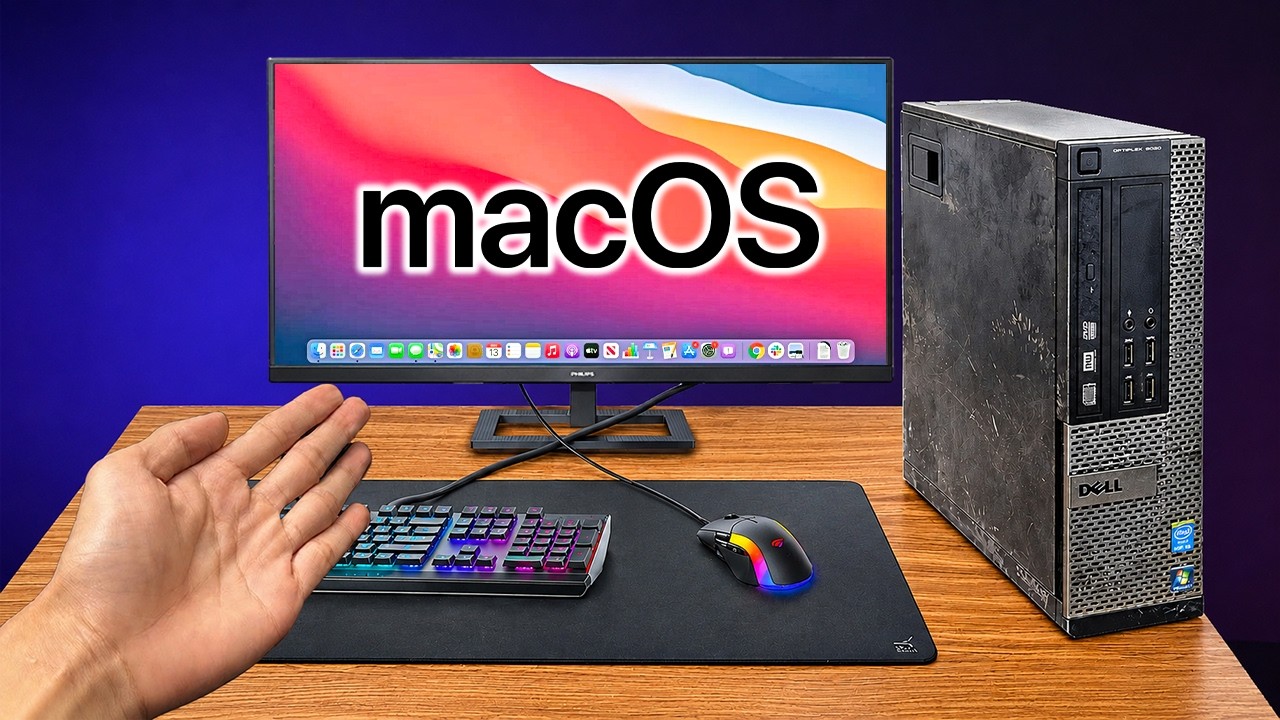
This video demonstrates how to install macOS, Apple's operating system, onto an old Dell office PC, effectively transforming it into a budget Mac. The process involves using tools like OpenCore Legacy Patcher to ensure hardware compatibility, creating a bootable USB installer, and configuring the PC's BIOS. The summary highlights the surprising performance of macOS on the aging hardware, including smooth media playback and application functionality, proving that a premium Mac experience can be achieved without the high cost.
How was this?
Save this permanently with flashcards, quizzes, and AI chat
Chapters
- Before installing macOS on an old PC, verify hardware compatibility using OpenCore Legacy Patcher.
- This tool scans the PC's components and suggests the latest macOS version the hardware can reliably support.
- Choosing a macOS version that balances modern features with hardware limitations is crucial for optimal performance (e.g., Big Sur on 4th gen Intel).
- macOS is not designed for standard PCs, requiring a special bootloader (EFI) to bridge the gap between Apple's software and non-Apple hardware.
Ensuring hardware compatibility upfront prevents wasted time and effort, and selecting the right macOS version is key to a stable and performant installation.
Using OpenCore Legacy Patcher to determine that the Dell Optiplex 7020 with 4th gen Intel hardware could run macOS Monterey, but opting for Big Sur for better performance.
- Generate a compatible EFI folder using OpenCore PKG, which acts as an interpreter for the PC's hardware.
- Download the desired macOS version (e.g., Big Sur) using the OpenCore PKG tool and a specific recovery product code.
- Prepare a USB drive (at least 8GB) formatted with GPT and FAT32 using Rufus.
- Copy both the generated EFI folder and the macOS recovery folder onto the USB drive.
The bootable USB serves as the installation medium and contains the necessary software bridge (EFI) that allows macOS to boot on non-Apple hardware.
Downloading the 'com.apple.recovery.boot' folder for Big Sur and combining it with the automatically generated EFI folder onto a USB drive.
- Before booting from USB, disable 'Secure Boot' in the PC's BIOS settings to avoid installation failures.
- Boot the PC from the prepared USB drive; initial boot may show a lot of code as the EFI initializes.
- Use Disk Utility within the macOS installer to format the target hard drive to APFS with a GUID partition map.
- Proceed with the 'Reinstall macOS' option, which can take a significant amount of time.
Correct BIOS settings and disk formatting are critical steps that enable the installer to properly partition and write the operating system to the PC's hard drive.
Forgetting to disable Secure Boot previously caused a 2-hour delay, emphasizing its importance before booting from the USB installer.
- After the initial macOS installation, the operating system is not yet bootable without the USB drive.
- This is because the EFI partition needs to be copied from the USB installer to the main hard drive.
- Use a tool like 'Mount EFI' to access the EFI partition on the installed macOS system.
- Copy the EFI folder from the USB drive to the EFI partition of the internal hard drive.
This final EFI setup step ensures that macOS can boot independently from the USB drive, making the installation permanent and functional.
Using the 'Mount EFI.command' file to access the internal drive's EFI partition and copy the EFI folder from the USB.
- macOS runs surprisingly smoothly and responsively on the old Dell PC, with fluid animations and quick app launches.
- Core macOS features like the dock, Launchpad, Control Center, and Spotlight search are fully functional.
- Media playback, including 1080p, 1440p, and even 4K YouTube videos, is flawless, outperforming Windows on similar hardware.
- The system efficiently manages resources, dedicating power to active tasks, which contributes to its smooth performance even under heavy load (e.g., multiple video streams).
- Applications from the App Store, including games like Homescapes and even Minecraft, run successfully.
This demonstrates that installing macOS on older hardware can provide a premium, stable, and highly optimized user experience, challenging the notion that expensive hardware is required for good performance.
Playing multiple 4K YouTube videos simultaneously without any dropped frames or stuttering, showcasing macOS's efficient resource management.
Key takeaways
- Old PCs can be given a new life by installing macOS, avoiding the high cost of Apple hardware.
- Tools like OpenCore Legacy Patcher are essential for determining hardware compatibility and creating a functional macOS installation on non-Apple machines.
- Disabling Secure Boot in the BIOS is a critical, often overlooked, step for successful installation.
- The EFI bootloader is the key component that enables macOS to run on standard PC hardware.
- macOS demonstrates remarkable efficiency in resource management, leading to smooth performance even on older or less powerful hardware.
- A budget-friendly Mac experience is achievable, making it unnecessary to spend over a thousand dollars on new Apple hardware for basic to moderate use.
- Don't discard old PCs; they can often be repurposed with alternative operating systems for surprising results.
Key terms
macOSHackintoshOpenCore Legacy PatcherEFI (Extensible Firmware Interface)Bootable USBBIOSSecure BootAPFS (Apple File System)GUID Partition MapResource Management
Test your understanding
- What is the primary purpose of OpenCore Legacy Patcher in the context of installing macOS on a PC?
- Why is disabling Secure Boot in the BIOS a necessary step before installing macOS on a PC?
- How does the EFI folder facilitate the installation and booting of macOS on non-Apple hardware?
- What are the key indicators that demonstrate macOS's efficient resource management on older hardware, as shown in the video?
- What is the main benefit of installing macOS on an old PC, according to the video's conclusion?