9:58
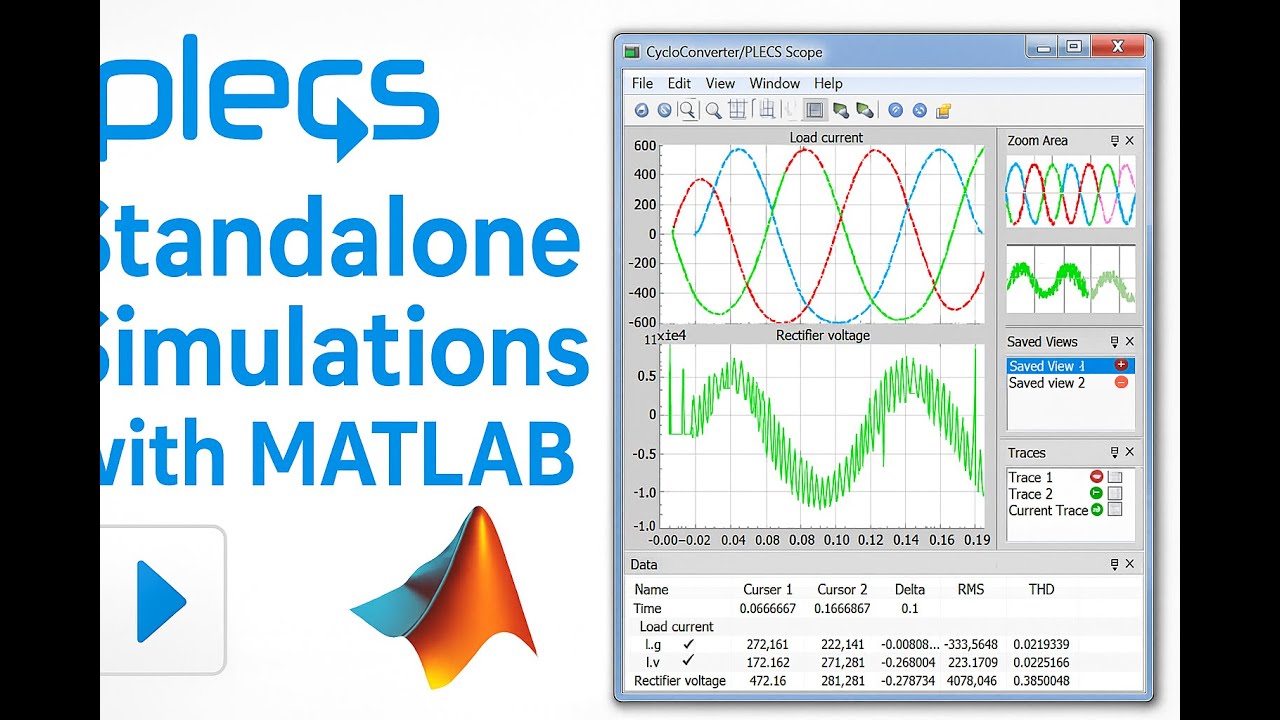
How to run PLECS Standalone from MATLAB Workspace
Here is Anatolii
Overview
This video demonstrates how to run PLECS simulations directly from MATLAB using a custom class called MLEX. This approach offers significant speed advantages over running simulations within Simulink and allows for seamless integration of PLECS results into the MATLAB workspace for further analysis and manipulation. The tutorial covers initializing the MLEX class, running simulations, plotting results with customizable axes, modifying simulation parameters on the fly, and accessing raw simulation data for use with standard MATLAB functions. This method enhances efficiency and flexibility for power electronics engineers working with PLECS.
How was this?
Save this permanently with flashcards, quizzes, and AI chat
Chapters
- Simulink with PLECS blockset can be slow for simulations.
- PLECS Standalone runs simulations significantly faster.
- Users often prefer Simulink for pre-developed blocks and MATLAB integration.
- This video introduces a method to control PLECS Standalone from MATLAB.
Understanding the performance difference between PLECS in Simulink and PLECS Standalone highlights the need for efficient simulation tools, especially for complex or lengthy analyses.
The speaker simulates a P6 converter in Simulink, noting its slowness, and then runs the same simulation in PLECS Standalone, observing a much faster execution time.
- A custom MATLAB class, MLEX, is introduced to interface with PLECS Standalone.
- MLEX uses JSON communication between MATLAB and PLECS.
- To use MLEX, create an object (e.g., 'P6') and specify the PLECS model name.
- The MLEX object connects MATLAB to the running PLECS Standalone instance.
This chapter introduces the core tool (MLEX) that bridges MATLAB and PLECS, enabling programmatic control and data exchange, which is crucial for automating workflows.
The speaker demonstrates creating an MLEX object named 'P6' for a model also called 'P6', showing the connection being established.
- The `simulate` function within MLEX executes the PLECS model.
- Specify output signals as a vector (e.g., VDC, duty cycles, phase voltages).
- Results can be plotted directly after simulation by setting `plot` to `true`.
- The simulation results are transferred back to the MATLAB workspace.
This allows for immediate visualization of simulation outcomes, providing quick feedback on the model's behavior without manual data export.
The speaker simulates the P6 model, specifying output signals, and sets `plot` to `true`, showing the resulting plot directly within MATLAB after the simulation completes.
- Simulation parameters (e.g., VDC, switching frequency, inductance) can be changed dynamically using the `set_param` function.
- Modified parameters take effect in the next simulation run.
- This enables rapid iteration and sensitivity analysis by changing variables and re-simulating.
- Advanced analysis like FFT can be performed on simulation results.
The ability to change parameters on-the-fly significantly speeds up design exploration and optimization by reducing the manual effort required for iterative testing.
The speaker changes the VDC parameter to 900 and then modifies the FFT analysis to focus on specific frequency ranges (e.g., 0-500 Hz) to examine harmonics.
- Simulation results can be plotted with customized axis limits using `plot_results` and attributes like `x_link` and `y_link`.
- This allows for focused visualization of specific regions of interest in the data.
- Raw simulation data (time, signals) is accessible directly in the MATLAB workspace via the `results` structure.
- Standard MATLAB plotting functions can be used on this raw data for maximum flexibility.
Fine-grained control over plotting and direct access to data empower users to perform in-depth analysis and create custom visualizations tailored to their specific needs.
The speaker demonstrates plotting results with specific x-axis limits (0-0.5 seconds) and y-axis limits for different signals (e.g., 0-1 for VDC, -400-400 for phase voltage), and then plots signals using standard MATLAB commands like `plot(P6_results.time, P6_results.DA)`.
Key takeaways
- Running PLECS simulations in Standalone mode from MATLAB via the MLEX class is significantly faster than using the Simulink blockset.
- The MLEX class facilitates seamless communication between MATLAB and PLECS Standalone using JSON.
- Users can initiate simulations, specify outputs, and retrieve results directly into the MATLAB workspace.
- Simulation parameters can be modified dynamically within MATLAB, allowing for rapid design iteration and analysis.
- Customizable plotting options and direct access to raw simulation data provide powerful tools for in-depth analysis.
- This integrated approach leverages the speed of PLECS Standalone and the analytical capabilities of MATLAB.
Key terms
PLECS StandaloneMATLAB WorkspaceMLEX ClassJSON CommunicationSimulation ParametersOutput SignalsPlotting AttributesFFT AnalysisSpace Vector Modulation
Test your understanding
- What are the primary advantages of running PLECS simulations via the MLEX class in MATLAB compared to using the Simulink blockset?
- How does the MLEX class enable communication between MATLAB and PLECS Standalone?
- Explain the process of running a simulation and retrieving its results using the MLEX class.
- How can you modify simulation parameters dynamically using MLEX, and why is this capability important for design engineers?
- What methods are available for visualizing simulation results, and how can you customize these visualizations?