1:25:42
HTML CSS and Javascript Website Design Tutorial - Beginner Project Fully Responsive
Brian Design
Overview
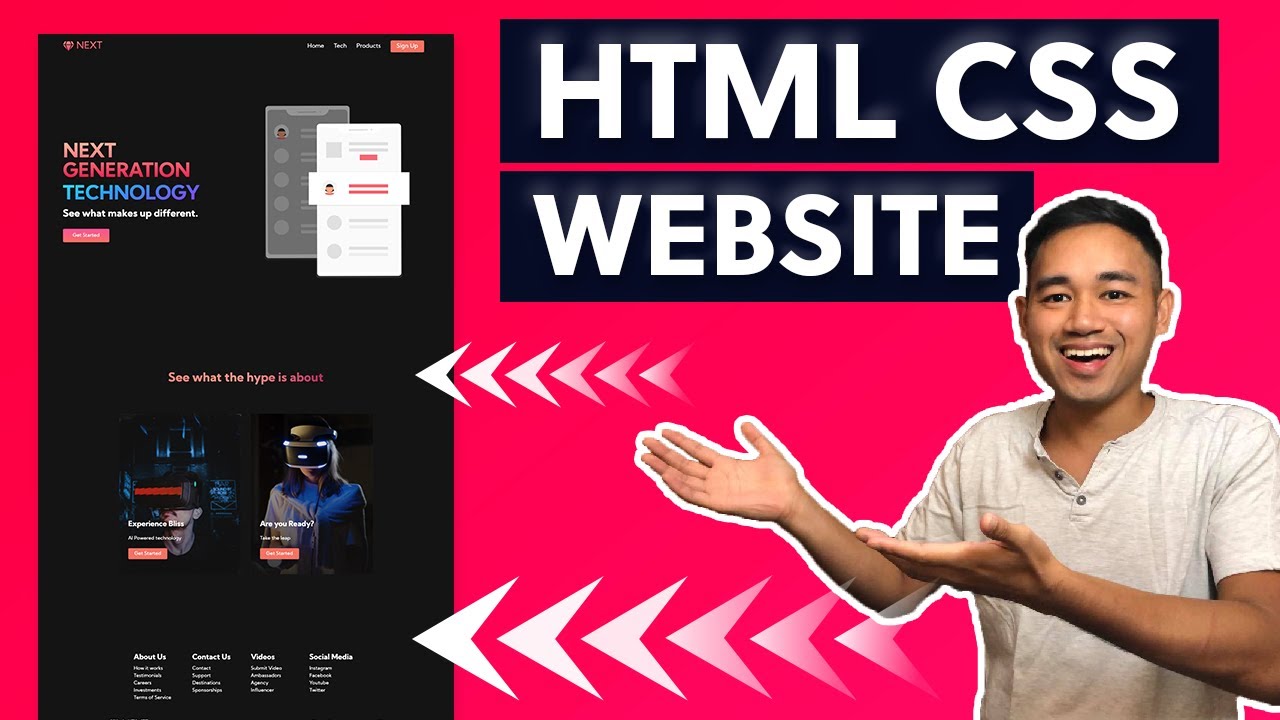
This tutorial demonstrates how to build a fully responsive website using HTML, CSS, and JavaScript. It covers creating a navigation bar with hover effects and a mobile toggle, a hero section with a gradient text effect and a button, service cards with image backgrounds and hover scaling, and a footer with navigation links and social media icons. The video emphasizes using VS Code extensions like Live Server and Prettier for efficient development and explains responsive design principles through media queries for tablet and mobile views. Finally, it integrates Font Awesome for icons and demonstrates how to add custom fonts from Google Fonts.
How was this?
Save this permanently with flashcards, quizzes, and AI chat
Chapters
- Set up project files: index.html, styles.css, app.js, and an images folder.
- Utilize VS Code extensions like Live Server for instant preview and Prettier for code formatting.
- Structure the HTML for the navigation bar, including a logo, a mobile toggle button, and navigation links.
- Implement basic CSS for the navigation bar, setting background color, height, and using flexbox for layout.
- Link the CSS file to the HTML and test the initial setup with Live Server.
Establishing a clear project structure and understanding basic HTML and CSS setup is fundamental for any web development project, ensuring a solid foundation for adding more complex features.
Creating a `nav` element with a `navbar` class, a `div` for the container, an `a` tag for the logo, and `ul` for menu items, all within `index.html`.
- Apply global CSS resets (box-sizing, margin, padding) and set a base font family.
- Style the navbar container, logo (using linear gradients for text effect), menu items, and buttons.
- Implement hover effects for navigation links and the call-to-action button.
- Use CSS media queries to adjust the navigation bar's layout for tablet and mobile screens, including hiding desktop links and showing a toggle icon.
- Incorporate Font Awesome for icons, specifically a gem icon in the logo.
Styling makes the website visually appealing, while responsive design ensures it functions and looks good across various devices, crucial for user experience.
Using `background-clip: text` and `webkit-text-fill-color: transparent` to create a gradient effect on the logo text.
- Add an event listener to the mobile menu toggle button in `app.js`.
- When clicked, toggle an 'active' class on the navigation menu and the toggle icon.
- Define CSS styles for the 'active' state of the mobile menu, making it visible.
- Create CSS transitions for the menu toggle animation, transforming the bars into an 'X'.
- Ensure the JavaScript file is correctly linked in the HTML using a `<script>` tag.
JavaScript interactivity enhances user engagement, allowing dynamic elements like a mobile menu to function correctly and provide a seamless user experience.
Using `document.querySelector` to select the mobile menu and `classList.toggle('active')` to add or remove the active class on click.
- Structure the hero section HTML with a container, content area (headings, paragraph, button), and an image container.
- Source and add a background image (SVG illustration) to the images folder.
- Style the hero section using CSS, including a grid layout for content and image, gradient text for the main heading, and a distinct button style.
- Implement a hover effect for the hero button using pseudo-elements (`::after`) to create an animated background.
- Apply media queries to make the hero section responsive for different screen sizes, adjusting text and button sizes.
The hero section is the first impression of the website; making it visually striking and responsive is key to capturing user attention.
Styling the `h1` with a linear gradient background and `background-clip: text` for a gradient text effect, similar to the logo.
- Structure the services section with a heading and a container for service cards.
- Create individual service cards with background images, text content (headings, paragraphs), and buttons.
- Source and add relevant images for the service cards.
- Style the service cards using background gradients and images, positioning text and buttons absolutely within the cards.
- Implement a scaling hover effect on the service cards using CSS transforms and transitions.
Service sections highlight key offerings; visually appealing cards with interactive elements can effectively communicate value and encourage user interaction.
Using `background-image: url(...)` combined with a `linear-gradient` on the service cards to create layered visual effects.
- Structure the footer with a container, link wrappers, social media icons, a logo, and copyright information.
- Organize footer links into logical groups using nested divs.
- Style the footer with a dark background, arranging elements using flexbox for alignment and spacing.
- Add social media icons using Font Awesome, ensuring they are clickable and open in a new tab.
- Apply responsive adjustments to the footer layout for smaller screens.
A well-structured footer provides essential navigation, contact information, and legal details, improving site usability and completeness.
Using `display: flex` and `justify-content: space-between` on the `social_media_wrap` to evenly distribute social icons.
Key takeaways
- Leverage VS Code extensions like Live Server and Prettier to streamline web development workflows.
- Employ semantic HTML structure for better accessibility and SEO.
- Utilize CSS flexbox and grid for efficient and responsive page layout.
- Create engaging visual effects like gradient text and hover animations using CSS properties.
- Implement JavaScript event listeners to add dynamic interactivity, such as mobile menu toggles.
- Understand and apply CSS media queries to ensure a website is responsive across different devices.
- Integrate external resources like Google Fonts and Font Awesome to enhance typography and iconography.
Key terms
HTMLCSSJavaScriptResponsive DesignMedia QueriesFlexboxGrid LayoutVS Code ExtensionsLive ServerPrettierFont AwesomeGoogle FontsSVG
Test your understanding
- How does using `box-sizing: border-box;` simplify CSS layout calculations?
- What is the purpose of `z-index` in CSS, and how does it affect element stacking?
- Explain the difference between using classes and IDs for HTML elements in CSS and JavaScript.
- How do media queries enable responsive web design, and what are common breakpoints used?
- Describe the process of adding an interactive element, like a mobile menu toggle, using JavaScript event listeners.