54:27
JuicedSign for Quickbase - Recipient Tags, Multiple Signers and More!
Juiced Technologies
Overview
This video provides a detailed walkthrough of the JuicedSign add-on for Quickbase, focusing on its capabilities for electronic signatures. It covers troubleshooting common issues with Exact Forms Plus, such as font size discrepancies, and then dives deep into JuicedSign's features. Key functionalities demonstrated include setting up single and multiple signers, configuring recipient strings, using anchor strings for tag placement, and understanding the preview and sending processes. The session also highlights the benefits of JuicedSign, such as not requiring a DocuSign account and its integration with Quickbase for data and document management.
How was this?
Save this permanently with flashcards, quizzes, and AI chat
Chapters
- Font size issues in Exact Forms Plus documents generated from Word templates can sometimes be resolved by checking the font size of the tilde-enclosed field markers within the Word template itself.
- The font of the tilde-enclosed marker in the Word template can influence the font of the data it pulls into the generated document.
- Testing output to Word format instead of directly to PDF can help diagnose conversion issues between Word and PDF generation.
Resolving font size issues ensures that generated documents are professionally formatted and accurately display all necessary information, preventing misinterpretations or a lack of clarity for recipients.
A user was experiencing incorrect font sizes for numbers pulled into a PDF. The solution involved adjusting the font size of the specific field marker (e.g., '~19~') within the Word template, as the marker's font was being applied to the data.
- JuicedSign is an add-on for Quickbase that facilitates sending documents for electronic signatures.
- To use JuicedSign, a document must first be generated, typically using Exact Forms Plus, and stored in a specific file attachment field.
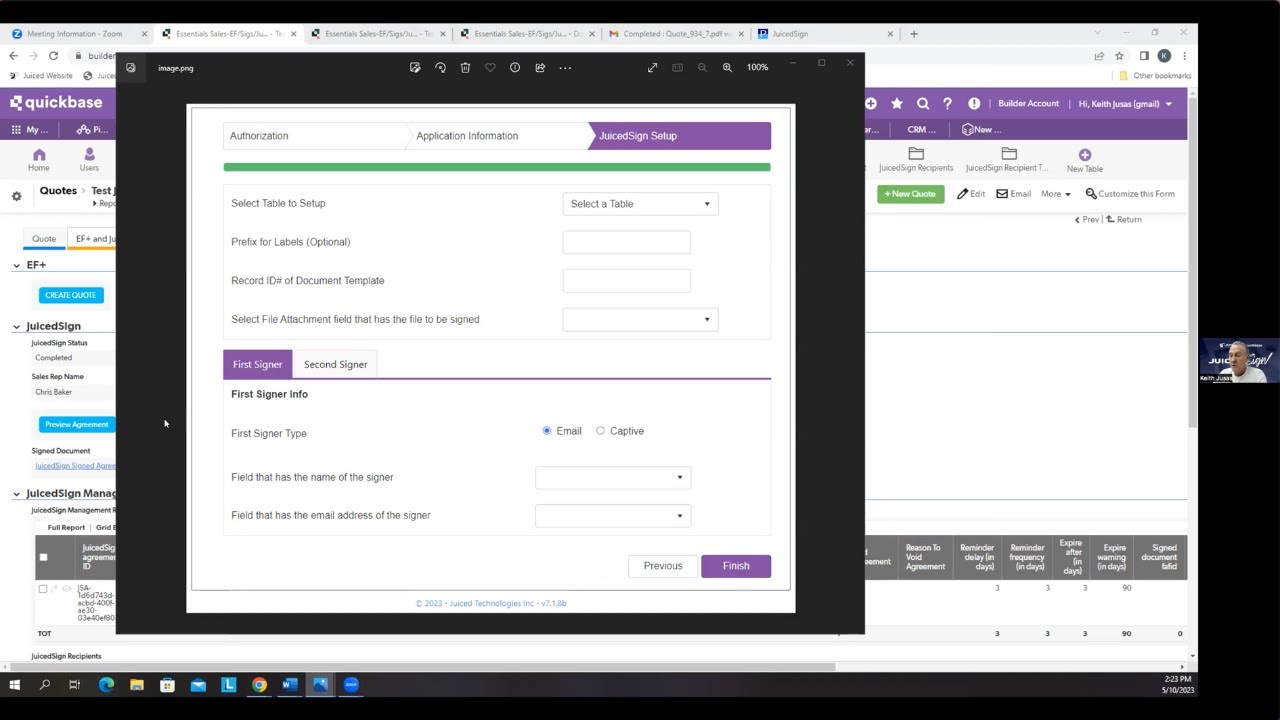
- Key fields for JuicedSign functionality include 'doc_fids' (specifying the file attachment and document template for tags) and 'recipient_string' (defining signers, their order, and signing experience).
- A 'preview' button allows users to visualize the document and tag placement before sending, helping to identify potential errors.
Understanding the basic setup and required fields is crucial for successfully initiating the signature process and avoiding common errors that prevent documents from being sent.
The 'doc_fids' field might contain '24 and 8', indicating that the file is in field 24 and uses template number 8 from the document templates table, which contains the necessary signature tags.
- JuicedSign uses tags within a document template to identify where signatures, initials, or text fields should be placed.
- Anchor strings are specific text sequences (e.g., 'PO#: ') that JuicedSign searches for in the document to determine the location for a tag.
- If an anchor string is not found in the document, JuicedSign will generate an 'anchor string not found' error, preventing the preview or sending process.
- Hidden tags can be used by making text invisible (e.g., white font on a white background) to mark specific locations for tags without cluttering the visible document.
Correctly configuring tags and anchor strings is fundamental to ensuring that electronic signature fields appear in the intended locations on the document, making the signing process accurate and efficient.
If the anchor string 'PO#: ' is defined in the document template, JuicedSign will look for this exact text in the generated document and place the corresponding tag (like a text input field) near it.
- The 'recipient_string' field defines the signers, their order, and whether they sign remotely or 'captively' within Quickbase.
- For multiple signers, each recipient is defined with a unique ID and signing order, separated by a pipe symbol.
- The first signer can be set to 'captive' mode, allowing them to sign directly within Quickbase without waiting for an email, which is useful for internal sign-offs.
- Subsequent signers are typically set to 'remote' mode, receiving an email with a link to sign the document.
Configuring multiple signers and their signing order is essential for complex workflows requiring approvals from different parties, ensuring the document progresses through the correct sequence of actions.
A 'recipient_string' like 'Chris Baker|Chris Baker's email|1|captive|Lisa Jones|Lisa Jones's email|2|remote' sets up Chris Baker as the first captive signer and Lisa Jones as the second remote signer.
- After sending, the recipient receives an email and can sign the document, filling in required fields and applying their signature.
- Upon completion, the signed document and any entered data (like PO numbers) are automatically returned and stored back into specified Quickbase fields.
- JuicedSign also generates a certificate of agreement detailing the signing process, which can be stored separately or merged with the signed document.
- The end customer receives only the signed document, not the detailed certificate of agreement, unless configured otherwise.
The automated return of signed documents and data streamlines record-keeping and ensures that all parties have access to the finalized, legally binding agreement within Quickbase.
After a customer signs, the completed PDF with their signature and entered PO number is saved to a file attachment field in Quickbase, and the PO number is updated in a separate text field on the record.
- Tag placement can be fine-tuned using X and Y offsets within the document template settings.
- The preview function allows users to test tag placement and recipient visibility without consuming a transaction.
- Adjusting offsets in the document template and then refreshing the preview helps perfect the visual alignment of tags.
- Spaces in record names or recipient strings can cause errors, highlighting the importance of precise data entry.
Precise control over tag placement ensures a professional appearance and user-friendly experience for signers, while the preview feature minimizes errors and saves on transaction costs.
If a PO number tag appears too far to the left, the X offset for that tag in the document template can be increased to move it further right in the preview.
- JuicedSign offers a Quickbase-native electronic signature solution that does not require a separate DocuSign account or associated costs.
- While JuicedSign is evolving, it incorporates many features from the established DocuSign integration, providing a robust starting point.
- The video recording and detailed documentation with screenshots are available on the Quickbase help site to assist users.
- Support is available for troubleshooting errors, including unexpected issues like 'pen ran out of ink' or data entry problems caused by extra spaces.
Understanding the benefits of JuicedSign and knowing where to find support resources empowers users to implement and troubleshoot the add-on effectively, leveraging its capabilities for their business needs.
A user experiencing a 'pen ran out of ink' error was advised to check for extra spaces in recipient names or the recipient string, a common cause of such issues.
Key takeaways
- Accurate font formatting in Word templates is essential for correct data display in Exact Forms Plus generated documents.
- JuicedSign relies on correctly configured document templates with searchable anchor strings to place signature and data fields.
- The 'recipient_string' is the central configuration for defining who signs, in what order, and how they access the document.
- Captive signing allows internal users to sign documents directly within Quickbase, streamlining internal approval processes.
- The preview feature in JuicedSign is a critical tool for verifying tag placement and recipient setup before sending, saving on transaction costs.
- Signed documents and data are automatically returned to Quickbase, creating a seamless workflow for record-keeping.
- JuicedSign provides a cost-effective alternative to DocuSign by integrating directly with Quickbase without requiring external accounts.
Key terms
JuicedSignQuickbaseExact Forms PlusDocument TemplateTagAnchor StringRecipient StringCaptive SigningRemote SigningX/Y Offset
Test your understanding
- How can font size issues in Exact Forms Plus documents be diagnosed and potentially resolved?
- What are anchor strings, and why are they critical for JuicedSign to function correctly?
- Explain the difference between 'captive' and 'remote' signing in JuicedSign and when each might be used.
- What is the purpose of the 'preview' button in JuicedSign, and how does it help users?
- How does JuicedSign ensure that signed documents and data are stored back into Quickbase?