AI-Generated Video Summary by NoteTube
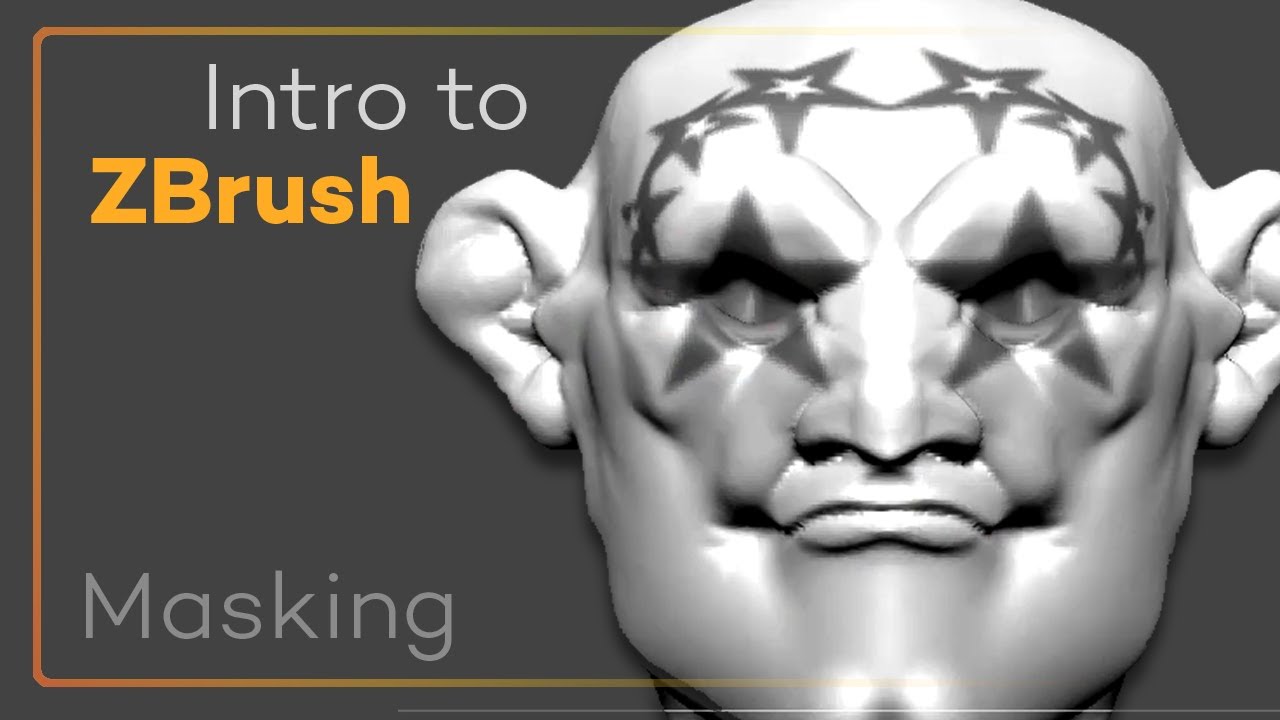
Intro to ZBrush 019 - Masking Basics! Use alphas, blur, sharpen, even respect hard edges!
Michael Pavlovich
Overview
This video provides a comprehensive introduction to masking in ZBrush, a fundamental technique for controlling sculpting and painting operations. It covers various methods for creating masks, including masking by color, using brush strokes, alphas, and specialized mask brushes like Mask Circle, Mask Curve, and Mask Lasso. The tutorial demonstrates how to modify masks using blur and sharpen functions, invert them, and clear them. It also explores advanced masking techniques such as using depth masks to respect surface edges and integrating masking with ZBrush's deformation tools like inflate and smooth. The video emphasizes the importance of masking for isolating areas of a model, enabling precise adjustments and creative effects, and highlights the efficiency of using hotkeys for common masking operations.
This summary expires in 30 days. Save it permanently with flashcards, quizzes & AI chat.
Chapters
- •Masking is a key technique for controlling ZBrush operations.
- •Mask by Color allows masking based on existing poly paint colors.
- •Masking creates areas where sculpting or painting is restricted.
- •View Mask option allows toggling the visibility of the mask.
- •Inverse Mask option flips the masked and unmasked areas.
- •Clear Mask removes all active masks.
- •Mask All applies a mask to the entire visible mesh.
- •Control + Drag on the canvas clears the mask.
- •Control + Drag on the object creates a rectangular mask.
- •Control + Drag outside the object clears the mask.
- •Mask Pin allows painting masks directly onto the model.
- •Holding Control switches to masking mode.
- •Holding Control + Alt subtracts from the mask.
- •Control + Tap on the canvas inverts the mask.
- •Control + Tap on the object blurs the mask.
- •Blur Mask softens the edges of a mask.
- •Sharpen Mask creates harder edges for the mask.
- •Control + Tap blurs the mask.
- •Control + Alt + Tap sharpens the mask.
- •Adjusting mask edges is crucial for smooth transitions.
- •Mask Circle creates circular masks.
- •Mask Curve allows creating masks along lines or Bezier curves.
- •Mask Lasso uses a freehand lasso selection for masking.
- •These brushes offer different ways to define masked areas.
- •Mask Rectangle and Mask Square create rectangular or square masks.
- •Depth Mask respects surface edges, making it harder to mask across them.
- •Depth Mask can be adjusted to control resistance to masking.
- •Custom masks can be created and saved for later use.
- •Masking can be combined with sculpting tools like Clay Buildup and H Polish.
- •Saving custom brushes ensures quick access to specialized masks.
- •Alphas can be used with masking brushes to create patterned masks.
- •Masking can be combined with the Deformation menu (e.g., Inflate).
- •Masking allows independent manipulation of different parts of the mesh.
- •Masking can be used to control poly painting areas.
- •Lazy Mouse can be used with masking for smoother strokes.
Key Takeaways
- 1Masking is essential for precise control over sculpting and painting in ZBrush.
- 2A variety of methods exist for creating masks, from simple drag rectangles to complex curves and color-based selections.
- 3Hotkeys (Control, Control+Alt) significantly speed up common masking operations like clearing, inverting, and painting.
- 4Blur and sharpen functions are vital for refining mask edges and achieving desired effects.
- 5Specialized mask brushes (Circle, Curve, Lasso, Depth) offer tailored solutions for different masking needs.
- 6Masking can be combined with deformation tools and sculpting brushes for advanced model manipulation.
- 7Custom masks can be saved and loaded for efficient workflow and reuse.
- 8Understanding masking unlocks the ability to isolate and modify specific parts of a 3D model effectively.