AI-Generated Video Summary by NoteTube
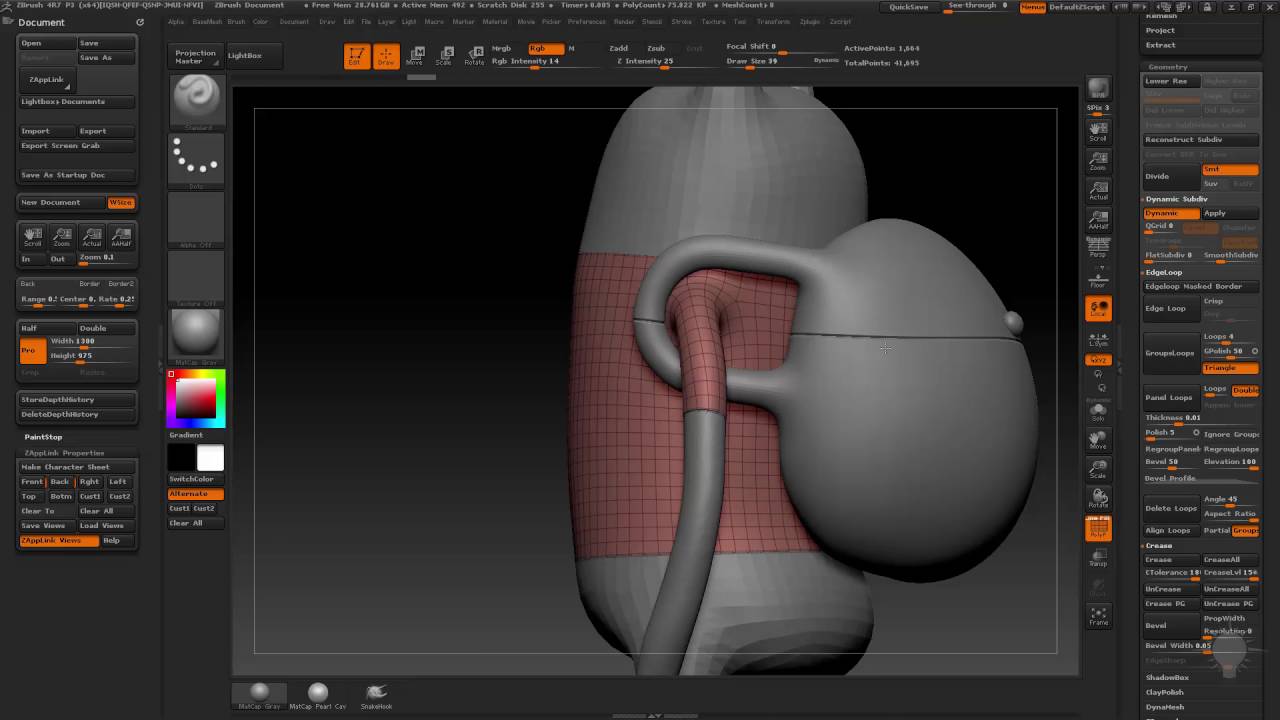
012 Clean Low Poly Model
Michael Pavlovich
Overview
This video demonstrates techniques for cleaning up and refining a low-poly 3D model, focusing on preparing it for potential 3D printing or further detailing. The presenter utilizes ZBrush tools like ZRemesher, ZModeler, and various polygrouping and subdivision methods to achieve a clean, stylized look. Key steps include separating model components, closing holes, creating bevels for definition, and smoothing surfaces. The process emphasizes maintaining control over the low-resolution mesh while previewing high-resolution details through dynamic subdivision. Techniques for adjusting geometry, such as sliding edge loops and using the move brush, are also shown to enhance the model's form and ensure details are visible even at small print sizes.
This summary expires in 30 days. Save it permanently with flashcards, quizzes & AI chat.
Chapters
- •Using ZRemesher with 'Keep Groups' to maintain existing polygroup lines.
- •Adjusting 'Smooth Groups Border' to prevent excessive smoothing.
- •Merging stray polygroups and manually creating new ones for better control.
- •Splitting the model into distinct parts like pants, shirt, and feet.
- •Using 'Delete Hidden' to remove unwanted geometry after isolation.
- •Closing holes in separated parts using 'Close Convex Hole' with the ZModeler brush.
- •Duplicating the head to work on different sections independently.
- •Using QMesh to create a clean inner surface for the head.
- •Flipping normals if they appear inverted after extruding or QMeshing.
- •Using Dynamic Subdivision (D key) to preview smoothed results.
- •Applying 'Crease Polygroup' to sharpen edges and define forms.
- •Customizing menus for faster access to frequently used tools.
- •Using the ZModeler brush to create significant bevels on edges.
- •Applying 'Crease Polygroup' again after beveling to maintain sharp edges.
- •Using 'Shift+D' to toggle dynamic preview and check bevel appearance.
- •Using the Move brush in dynamic preview mode to adjust the low-res mesh envelope.
- •Employing 'Polish by Features' to even out surfaces and reduce dimpling.
- •Manually polishing areas with the H Polish brush to fix geometry imperfections.
- •Sliding edge loops to adjust bevel size and placement.
- •Using the Move brush to create overlapping elements, like a backpack flap.
- •Leveraging X-symmetry for efficient adjustments on both sides of the model.
Key Takeaways
- 1Clean topology is crucial for effective detailing and subdivision.
- 2Separating model components allows for targeted refinement.
- 3ZModeler's edge loop and polygroup tools are powerful for creating defined shapes.
- 4Dynamic Subdivision provides a real-time preview of high-resolution results on a low-poly base.
- 5Beveling edges significantly enhances model definition, especially for 3D printing.
- 6Manual sculpting and polishing tools (like H Polish) are essential for fixing geometry issues.
- 7Understanding polygrouping is key to controlling subdivision and creasing effects.
- 8Iterative refinement, combining automated tools with manual adjustments, yields the best results.